How to Set Up Home Assistant Chromium Dashboard in Kiosk Mode
Setting Up Chromium in Kiosk Mode to Run a Home Assistant Dashboard on a Touchscreen Device (Debian)
I recently set up a touchscreen device to run my Home Assistant dashboard in kiosk mode on Debian, and I wanted to share the steps I took to get it running smoothly. To make the process easier for anyone doing the same, I wrote a script that handles most of the setup, including turning off the mouse pointer and configuring Chromium to launch in full-screen kiosk mode.
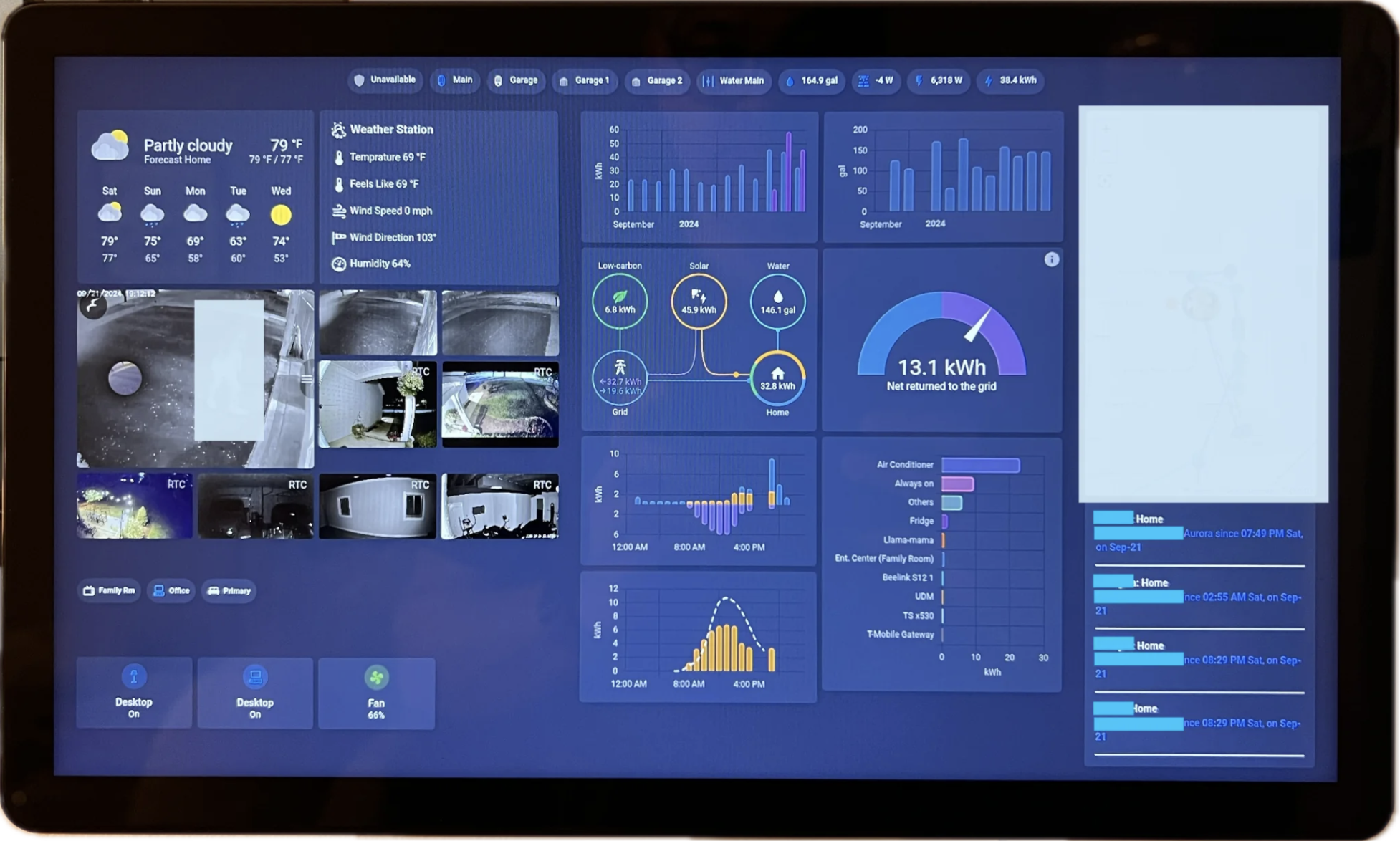
Choosing Chromium for Kiosk Mode
I tried a few different ways to display my Home Assistant dashboard, including cheap Android tablets and browsers like Fully. What worked best for me was a dedicated touchscreen device running Chromium in kiosk mode on Debian. The dashboard fills the screen, loads on its own at boot, and there’s no browser UI in the way.
Benefits:
- The dashboard takes over the whole screen, so there’s nothing to distract from it.
- Chromium starts by itself as soon as the device boots.
- Touch input works well, which is how I actually use it.
- The script turns off the mouse pointer automatically, since you don’t need one on a touchscreen.
My Setup:
I started by installing Debian 12 (Bookworm) on a Mele PCG02 with an N4000 CPU and 4GB RAM. I didn’t need a graphical desktop environment for this project, so I installed Debian without one. During the installation I only selected SSH and Standard Utilities, to keep the system as lightweight as possible.
For the display I’m using a 15-inch FHD IPS touchscreen. It works well with Chromium in kiosk mode and is good enough for my Home Assistant dashboard.
You’ll also need the IP address of your Home Assistant instance, and the path to your dashboard.
Installing Sudo
After the installation I noticed that the sudo command wasn’t included by default. I had to install it manually and add the user to the sudo group using:
su
apt update
apt install sudo
usermod -aG sudo
Setup Using ha-chromium-kiosk-setup.sh:
1. Downloading the Script
wget https://raw.githubusercontent.com/kunaalm/HA-Chromium-Kiosk/refs/heads/main/ha-chromium-kiosk-setup.sh2. Running the Script
Once the script was downloaded, I gave it executable permissions and ran it:
chmod +x ha-chromium-kiosk-setup.sh
./ha-chromium-kiosk-setup.sh
3. Configuration Prompts:
The script is interactive and asks for the following:
- The Home Assistant IP address, which is required.
- The Home Assistant port, which is optional and defaults to 8123.
- The dashboard path, which is optional and defaults to /lovelace/dashboard.
- The kiosk mode option, which is optional and adds
?kiosk=trueto the end of the URL.
Conclusion
Running a Home Assistant dashboard on a touchscreen device with Chromium in kiosk mode on Debian worked out well for my smart home setup. The script I wrote automates most of the setup and the removal, including the kiosk mode configuration and the mouse pointer removal.
You can find the script and detailed documentation on GitHub: HA-Chromium-Kiosk.
Update, 2026: this project got a real overhaul, with three new releases, a bunch of fixed bugs, and real demo footage. Read about what changed in HA-Chromium-Kiosk, 2026: fixes, releases, and real demos.
Loading comments…